Managing LVM in Linux
12/7/2014
Part 1) Logical Volume Management (LVM) pools physical storage for flexible disk management.
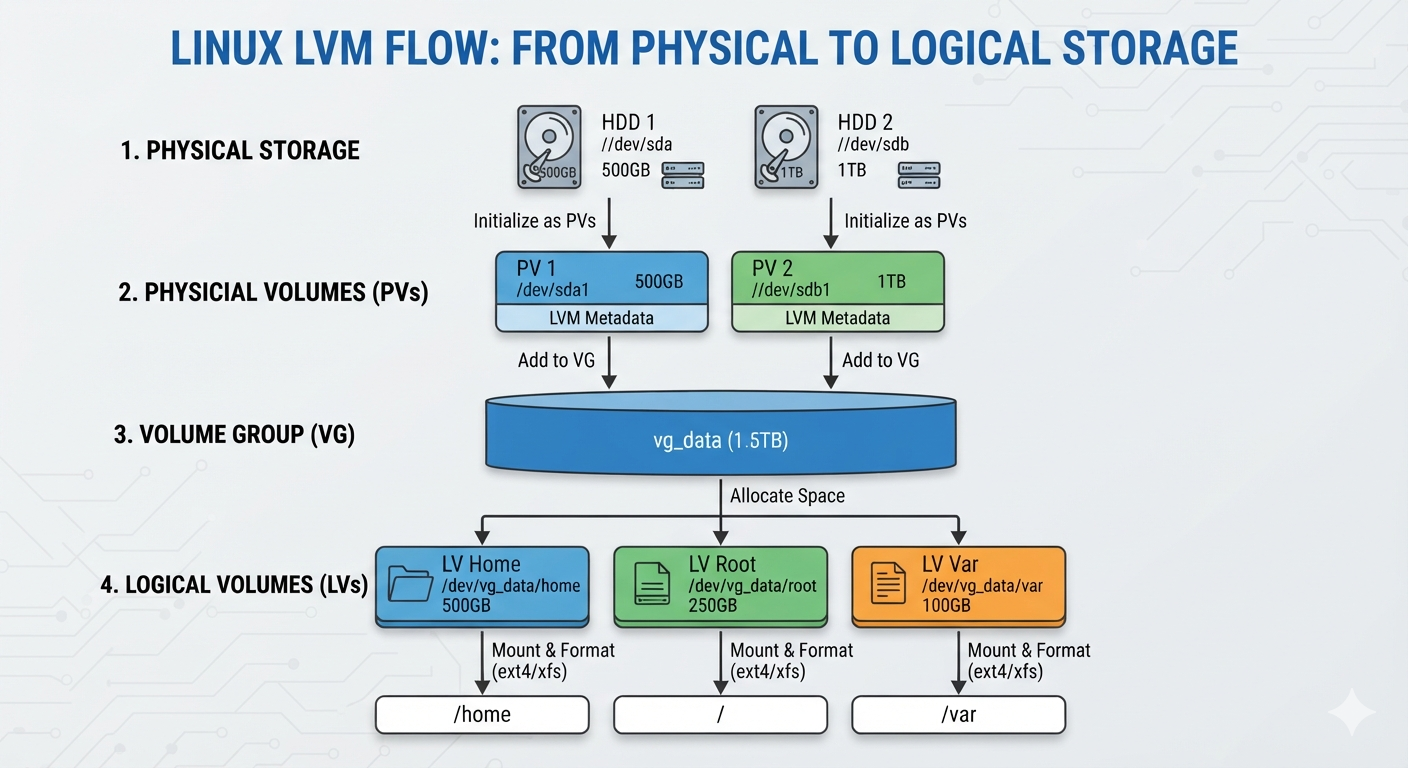
1. Diagram Breakdown
- Physical Storage: Raw disks (
/dev/sdaand/dev/sdb). - Physical Volumes (PV): Initialized disks formatted for LVM.
- Volume Group (VG): Combined pool (
vg_datatotaling 1.5TB). - Logical Volumes (LV): Partitions (
home,root,var) cut from the pool.
2. Practical Commands
Step 1: Create PVs Initialize the partitions for LVM use.
pvcreate /dev/sda1 /dev/sdb1Step 2: Create VG
Combine the PVs into a single pool named vg_data.
vgcreate vg_data /dev/sda1 /dev/sdb1Step 3: Create LVs Carve out specific sizes from the volume group.
lvcreate -L 500G -n home vg_data
lvcreate -L 250G -n root vg_data
lvcreate -L 100G -n var vg_data
Step 4: Format & Mount Format with a file system and mount to directories.
mkfs.ext4 /dev/vg_data/home
mount /dev/vg_data/home /home
2) Make your LVM partitions permanent across reboots and learn how to scale storage dynamically.
1. Permanent Mounts via /etc/fstab
To ensure your logical volumes automatically mount at boot, add them to /etc/fstab.
Open the file in a text editor:
sudo nano /etc/fstabAppend the following lines to the bottom of the file:
/dev/vg_data/home  /home  ext4  defaults  0  2
/dev/vg_data/root  /      ext4  defaults  0  1
/dev/vg_data/var   /var   ext4  defaults  0  2
Test your setup to avoid boot errors:
sudo mount -a2. Dynamically Resize Storage
The main advantage of LVM is resizing volumes on the fly without unmounting.
Expand a Logical Volume
Add 50GB of extra space to your /home partition instantly:
lvextend -L +50G /dev/vg_data/homeResize the Filesystem Grow the underlying filesystem to fill the newly allocated space.
For ext4 filesystems:
resize2fs /dev/vg_data/homeFor XFS filesystems:
xfs_growfs /home