Creating and Managing Datastores and Raw Device Mappings (RDM) on VMware vSphere
8/15/2016
A Practical Guide for VMware Administrators and Infrastructure Engineers (2016)
Introduction
Storage is one of the most critical components of any VMware vSphere environment. Every virtual machine ultimately depends on the underlying storage subsystem for availability, performance, and scalability.
While VMware VMFS datastores are the standard method for hosting virtual machines, certain enterprise applications require direct access to storage through Raw Device Mapping (RDM).
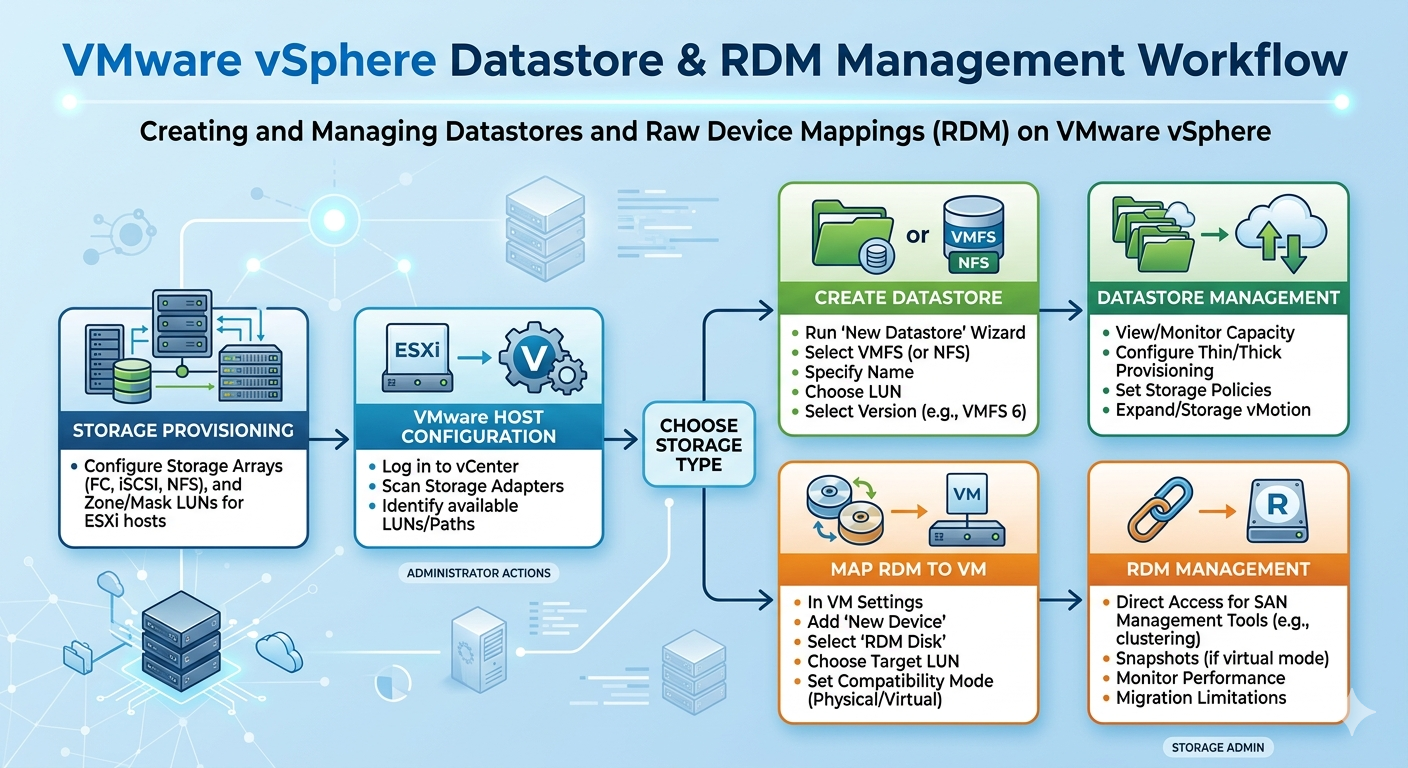
This article provides a practical walkthrough of creating and managing VMFS datastores and configuring Raw Device Mappings in VMware vSphere. The focus is on production administration rather than theory, covering the tasks commonly performed by VMware administrators in enterprise environments.
1. Storage Planning Before Deployment
Proper planning avoids costly storage migrations and downtime later.
Gather Application Requirements
Before requesting storage from the SAN team, identify:
- Capacity requirements
- Expected annual growth
- Read/write workload
- Backup requirements
- Availability requirements
- Clustering requirements
Example:
| Application | Initial Size | Expected Growth | Storage Type |
|---|---|---|---|
| Windows File Server | 500 GB | 20% yearly | VMFS |
| SQL Database | 2 TB | High | RDM |
| Oracle Database | 5 TB | High | RDM |
| Web Server | 100 GB | Low | VMFS |
Decide Between VMFS and RDM
Use VMFS when
- Hosting standard virtual machines
- Using VMware snapshots
- Using Storage vMotion
- Simplifying administration
Use RDM when
- Microsoft Failover Clustering (MSCS)
- Large databases
- Storage-array replication
- SAN-based backup solutions
- Applications requiring direct LUN access
Capacity Planning
Avoid filling datastores beyond 80%.
Datastore Capacity : 5 TB
Target Usage       : 4 TB
Reserved Space     : 1 TB
This allows room for VM growth and temporary operations such as snapshots.
Naming Convention
DS_PROD_SQL01
DS_PROD_WEB01
DS_DEV_GENERAL
DS_TEST_VMFS01
Consistent naming simplifies administration and troubleshooting.
2. Preparing Storage on the SAN
Most VMware environments rely on Fibre Channel or iSCSI storage arrays.
Typical SAN administrator tasks include:
- Create the LUN
- Assign the LUN ID
- Present the LUN to ESXi hosts
- Configure LUN masking
- Configure Fibre Channel zoning (if applicable)
Verify Connectivity
Navigate to:
Configuration
→ Storage Adapters
→ Rescan All
Or from the ESXi shell:
esxcli storage core adapter rescan --allVerify New Devices
esxcli storage core device listExample:
naa.60060160xxxxxxxxxxxxxxxx

Size: 2048 GB
Status: Active
Verify Multipathing
esxcli storage nmp device listExample:
Path 1   Active
Path 2   Active
Path 3   Standby
Path 4   Standby
3. Creating and Managing VMFS Datastores
Once the storage is visible, create the datastore.
Step 1
Open:
vSphere Client

Configuration

Storage

Add Storage
Select:
Disk/LUNStep 2
Choose the new LUN.
LUN 20

2 TB
Step 3
Select the filesystem.
VMFS-5Step 4
Assign the datastore name.
DS_PROD_SQL01Step 5
Allocate the full available capacity.
Complete the wizard.
The datastore becomes immediately available.
Verify
Check:
- Capacity
- Free Space
- VMFS Version
Extending Existing Datastores
If the SAN administrator expands the LUN:
- Rescan storage.
- Select the datastore.
- Click Increase Capacity.
VMFS expands online without interrupting running virtual machines.
Monitor Usage
Regularly monitor:
- Capacity
- Free Space
- Latency
- Number of virtual machines
Avoid placing too many high-I/O virtual machines on the same datastore.
4. Configuring Raw Device Mapping (RDM)
RDM provides direct access to a SAN LUN while allowing VMware to manage the virtual machine.
Compatibility Modes
Physical Compatibility Mode
Recommended for:
- Microsoft Cluster Services
- SAN replication
- Storage-array snapshots
Limitations:
- VMware snapshots are not supported.
Virtual Compatibility Mode
Supports:
- VMware snapshots
- Limited Storage vMotion
- VMware management features
Suitable for most enterprise database workloads.
Creating an RDM
Edit the VM settings.
Select:
AddChoose:
Hard Disk

Raw Device Mapping
Select the available LUN.
Choose either:
Physicalor
VirtualStore the mapping file on a VMFS datastore.
Note
Only the small mapping file resides on VMFS. The actual data remains on the physical SAN LUN.
Windows Verification
Open:
Disk ManagementThe disk initially appears as:
OfflineBring the disk online, initialize it, and format if required.
Linux Verification
fdisk -lor
lsblkConfirm the new disk is visible.
5. Managing Storage Growth and Day-2 Operations
Storage requirements continually increase in production environments.
Expanding Datastore Capacity
Typical workflow:
- Expand the LUN on the SAN.
- Rescan storage adapters.
- Expand the datastore.
No downtime is required.
Expanding Guest OS Disks
Windows:
Disk Management

Extend Volume
Linux:
growpart

resize2fs

xfs_growfs
Storage vMotion
Move virtual machines without downtime.
Right Click VM

Migrate

Change Datastore
Common use cases include:
- Storage maintenance
- Datastore balancing
- Storage hardware refresh
Capacity Monitoring
Monitor:
- Used Capacity
- Free Capacity
- Datastore Latency
- Queue Length
Review these metrics weekly in production.
6. Performance Optimization and Common Bottlenecks
Storage issues often present themselves as virtual machine performance problems.
Multipathing
Verify the storage path policy.
Round RobinExample:
Path Selection Policy

Round Robin
Round Robin distributes I/O across multiple storage paths.
Queue Depth
Watch for:
- High latency
- Slow virtual machines
- Database delays
Coordinate queue depth tuning with the storage team.
Datastore Distribution
Avoid placing the following workloads on the same datastore:
- SQL Server
- Exchange
- Oracle
- File Servers
Distribute workloads across multiple datastores.
Storage Latency Guidelines
Below 10 ms     Excellent

10–20 ms        Acceptable

Above 20 ms     Investigate

Above 50 ms     Critical
Snapshot Best Practices
Delete snapshots immediately after backups or maintenance.
Never leave snapshots active for extended periods.
7. Troubleshooting Storage Issues
Datastore Not Visible
Verify:
- Storage presentation
- Adapter rescan
- HBA health
- SAN zoning
Rescan storage:
esxcli storage core adapter rescan --allLUN Missing
esxcli storage core device listIf no device appears, verify:
- SAN presentation
- LUN masking
- Fibre Channel zoning
- iSCSI connectivity
RDM Cannot Be Created
Possible causes:
- LUN already assigned
- Incorrect presentation
- Unsupported compatibility mode
- Existing partitions
Path Failure
esxcli storage core path listLook for:
Dead

Disabled

Standby
Healthy environments should always have redundant active paths.
APD (All Paths Down)
Symptoms include:
- VM freezes
- Datastore unavailable
- Storage timeout messages
Investigate:
- SAN switches
- HBAs
- Storage processors
- Cabling
PDL (Permanent Device Loss)
Possible causes:
- Storage unpresentation
- SAN changes
- Storage controller failures
Useful ESXi Commands
esxcli storage core adapter listesxcli storage core device listesxcli storage core path listesxcli storage filesystem list8. Enterprise Best Practices
- Standardize datastore naming.
- Separate high-I/O workloads.
- Maintain at least 20% free datastore capacity.
- Verify multipathing on every ESXi host.
- Monitor storage health proactively.
- Remove snapshots promptly.
- Document every storage-related change.
- Perform periodic storage audits.
Conclusion
VMware vSphere provides two primary methods of presenting storage to virtual machines: VMFS datastores and Raw Device Mapping (RDM).
VMFS remains the preferred choice for most workloads because of its flexibility, ease of management, and support for VMware features such as snapshots and Storage vMotion. RDM should be reserved for specialized enterprise workloads that require direct SAN access or integration with storage-array capabilities.
By following the planning guidelines, implementation procedures, troubleshooting techniques, and operational best practices presented in this guide, VMware administrators can build a scalable, resilient, and high-performing storage infrastructure capable of supporting enterprise virtualization workloads.